Important Setup Information
Please read the following setup information carefully before using Import Series from WooCommerce.
DK Book Series builds series pages from WooCommerce book products. The plugin depends on product categories, product attributes, and DK Base Plugin settings being configured consistently.
Product Categories
Only products in the configured book categories are considered for Book Series pages. The default setup expects a Books category, and the Coming Soon category has special behavior.
- Books: The main category used to find book products.
- Coming Soon: Products in this category can appear in a series without displaying an Add To Cart button.
Categories can be changed in WooCommerce, but the corresponding DK Base Plugin search-category settings must include the categories assigned to the products.
Product Attributes
All books that belong to the same series must use the same Series product attribute term. Different formats of the same book, and every book in the series, should share that Series term.
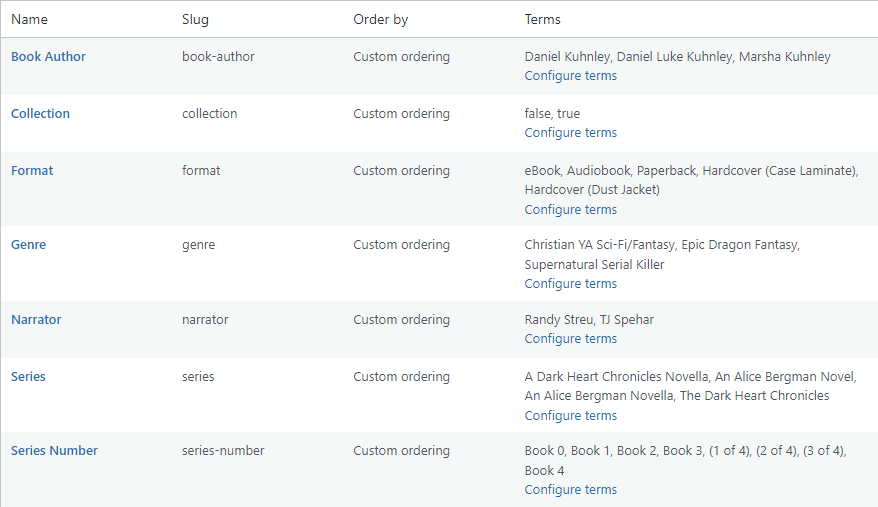
Product Attributes can be added or edited from Products -> Attributes. After creating the attributes, apply the correct terms to each WooCommerce product in the Product data -> Attributes section.
Suggested Product Attributes:
- Format: Terms such as Audiobook, eBook, Paperback, Hardcover, or other sale formats.
- Series: Terms that match the public names of book series.
- Series Number: Terms such as Book 1, 2 of 5, Prequel, or other ordering labels.
- Book Author
- Genre
- Narrator
DK Base Plugin Attribute Settings
The plugin reads the attribute names configured in DK Base Plugin for the book format, series, and series number values. If your WooCommerce attributes use names other than the defaults, update those values in DK Base Plugin before importing or displaying series.
- Book Format Attribute: Controls the format choices shown in the buy block.
- Book Series Attribute: Controls which attribute groups products into a Book Series.
- Book Series Number Attribute: Controls the label displayed on each book card and the order of books in full-card and images-only series displays. The attribute's configured sorting is used; when set to Custom ordering, arrange its terms in Products → Attributes → Configure terms. Books sharing a term retain their product menu order and title order. Books without a Series Number term appear after numbered books, ordered by product publish date from oldest to newest.
Collections and Related Products
Collections are used for bundled products such as a trilogy, omnibus, or multi-book pack. A product can be treated as a collection when its Collection attribute is set or when the product is marked as a collection in the DK product metadata.
Related products are built from WooCommerce cross-sell products on the books in the series. To show related products on a series page, configure cross-sells on the WooCommerce products and enable related products in the Book Series settings.
The Book Series list page is used to import series from WooCommerce, manage existing series records, apply default settings, copy links and shortcodes, sort series, and delete records that are no longer needed.
Import Series from WooCommerce
The "Import Series from WooCommerce" button creates a published Book Series record for each term in the WooCommerce product attribute configured as the Book Series Attribute in DK Base Plugin. Existing Book Series records are left unchanged, so running the import again only adds missing series.
After a Book Series record exists, the public display finds products that use the same Series term and belong to one of the product categories selected in the DK Base Plugin search settings.
Important: If a product is missing the Series attribute, uses a different Series term, is outside the configured search categories, or if the DK Base Plugin attribute settings do not match the WooCommerce attributes, that product will not be included in the expected Book Series page.
Bulk Actions
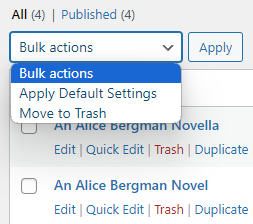
The available bulk actions are Apply Default Settings and Move to Trash.
Apply Default Settings replaces the selected Book Series page settings with the values from the Default Settings page. Configure and verify the Default Settings before using this action across multiple series.
Edit Default Settings
Use the Edit Default Settings button to configure the global defaults that new and updated series can inherit. See the Default Settings tab for more information.
Page URL
The Page URL column contains the public link for each Book Series page. Click the icon next to a URL to copy it to the clipboard.
Shortcode
The shortcode column contains a shortcode for displaying a Book Series inside other WordPress content. Click the icon next to a shortcode to copy it to the clipboard.
Shortcode Parameters
- id: Required. The Book Series post ID to display.
- images_only (default "false"): Displays only the Book Series images when set to "true".
- hide_related (default "false"): Hides related products for this shortcode instance when set to "true".
Example: [dk_book_series id="00000" images_only="true"]
Example: [dk_book_series id="00000" hide_related="true"]
Sorting
The icon can be used to drag Book Series records into the desired order. Sorting affects the display order of series on the Book Series archive page.
Book Series can be displayed as individual series pages, through the Book Series archive, or by using the shortcode inside other WordPress content.
Individual Series Pages
Each Book Series record has its own public page. The page displays the configured series title, books in the series, available buy options, preview and details buttons, collection section when applicable, and related products when enabled.
The public page uses the series page background color or background image, if configured. These page background settings are not included when the shortcode is used inside another page.
Book Series Archive
The archive page lists published Book Series records and links each archive section to the corresponding individual series page.
The archive uses each series title image when one is selected. If no title image is selected, it displays the series title text with the configured title colors. The archive can also use the series background image or background color for each section.
The archive URL is controlled by the Page Slug setting. After changing the slug, refresh permalinks if the new URL does not resolve immediately.
Shortcode Display
Use the shortcode when a Book Series needs to appear inside a page, post, builder block, or custom layout instead of using the generated series page.
The shortcode displays the same series content, but it does not include the standalone page background image or background color. This lets the shortcode fit into the page where it is embedded.
Use images_only="true" for image-only series displays, and use hide_related="true" when related products should be hidden for a specific shortcode placement.
Collections and Related Products
Collection products are displayed in a collection section when matching collection products are found for the series. The section heading and styling are controlled by Collection settings.
Related products are displayed from WooCommerce cross-sell products attached to books in the series. They can be enabled or disabled in the default settings, overridden on individual series, and hidden per shortcode with the hide_related parameter.
The Default Settings page defines the global Book Series styling and behavior used when creating or resetting series records. Individual Book Series pages can override many of these values.
Series Page Settings
Series Page Settings control the public page slug and the page background fallback.
- Page Slug: The base URL for Book Series pages and the Book Series archive.
- Background Color: Used when no background image is selected.
- Background Image: Used on standalone Book Series pages and archive sections.
- Show Coming Soon Title: Displays the product title and subtitle for products assigned to the Coming Soon category. The series number is still displayed when this option is disabled.
Series Title Settings
Series Title settings control the visual title treatment. If a Series Title Image is selected for a series, that image is used. If no title image is selected, the text color, background, shadow, and responsive font sizes are used.
Collection and Related Product Settings
Collection settings control the heading and styles for bundled series products such as trilogy, omnibus, or multi-book collection products.
Related Product settings control whether WooCommerce cross-sell products appear under a series and how that section heading is styled.
Book Card and Button Settings
Book Card settings control the colors used for book names, series numbers, card backgrounds, and card borders.
Button settings control the Audio Sample, Book Preview, Book Details, and Add To Cart button colors, borders, hover colors, and radius where applicable.
Swiper Settings
Swiper settings control the navigation button color used by the series carousels. The carousels are used to display the books in a series and any collection products that apply.
The Edit Book Series Settings page controls the styling and behavior for one Book Series page. These values can override the global defaults for that series.
Save Settings as Defaults
The "Save Settings as Defaults" button copies the current series settings into the Default Settings page. Global values that are not part of the individual series settings are preserved.
Replace Book Series Settings with Defaults
The "Replace Book Series Settings with Defaults" button overwrites the current series styling with the Default Settings values. The selected Book Series value is preserved so the page continues to represent the same WooCommerce series.
Series Page and Title
The page background image and color apply to the standalone Book Series page. The title image is used when selected; otherwise, the title text settings are used. These settings also affect how the series appears on the Book Series archive page.
Collection and Related Products
Collection settings style the collection section when a collection product is found for the series.
The Show Related Products setting controls whether WooCommerce cross-sell products appear for this series. Related products are only shown when the setting is enabled and matching cross-sell products are found.
Book Cards, Buttons, and Swiper
Book Card settings control the visual treatment of each book card. Button settings control Audio Sample, Book Preview, Book Details, and Add To Cart buttons. Swiper settings control the carousel navigation color.
Use the previews on the settings page to confirm color, size, and hover choices before saving.