WooCommerce Product Setup
DK WC Books builds public Book pages from WooCommerce products. Before importing, make sure the products use the categories and attributes configured for Books in the DK Base Plugin settings.
Only products assigned to the configured Book product categories are imported. The WooCommerce product remains the source for price, purchase options, product image, description, stock status, gallery images, and format data.
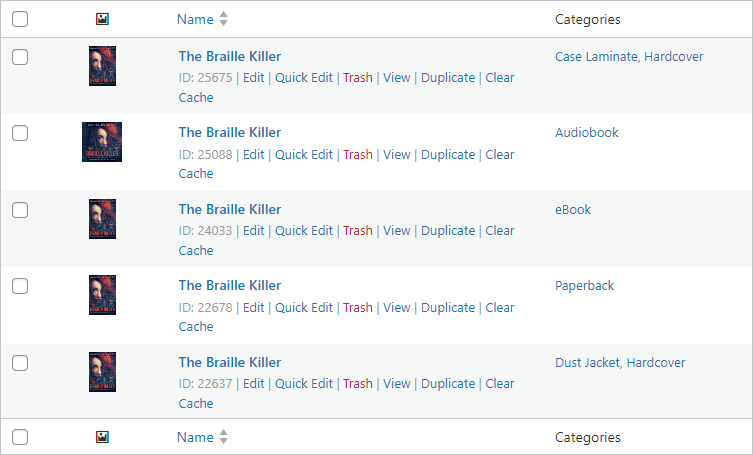
Required Product Structure
For the initial import, WooCommerce products that should be grouped into one Book record must use the same product title. For example, eBook and paperback bundles of the same collection can share a title during import.
After import, the Book record stores the linked product IDs. Product titles can then change without breaking or moving the relationship, and products with different titles can be added explicitly from the Book editor.
Different formats can be represented by separate products, product attributes, or variations, depending on how the item is sold.
Collections such as boxed sets, trilogies, or omnibus editions can be identified with the Collection attribute so archive sections and public displays can separate them from single-title books.
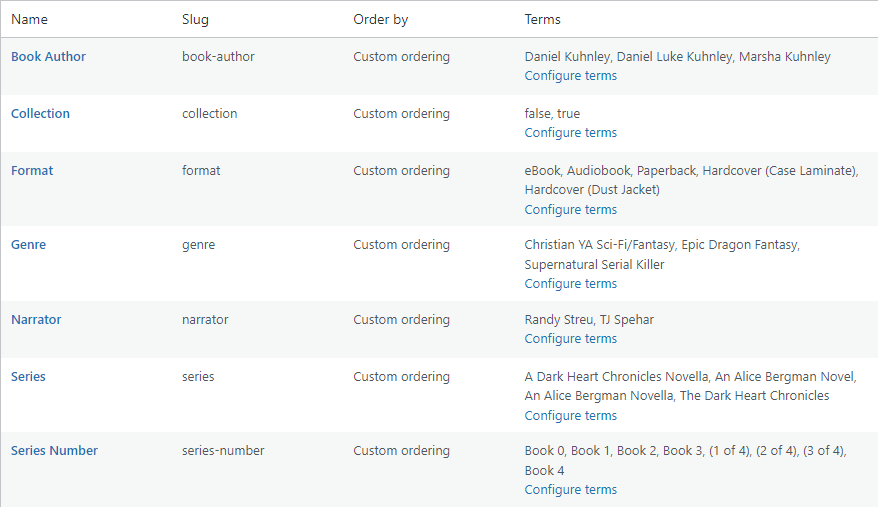
Product Attributes
Create product attributes under Products -> Attributes, then apply the correct terms to each WooCommerce product from the product edit screen.
- Format: Used for purchase format options such as eBook, paperback, hardcover, audiobook, or signed paperback.
- Collection: Marks boxed sets, bundles, trilogies, omnibuses, or other multi-title products.
- Book Author: Used for author display and archive filtering when configured.
- Genre: Used for book details and optional archive sections.
- Narrator: Used for audiobook details when available.
- Series: Used by DK Book Series and by Book archive sections when configured.
- Series Number: Used for display values such as Book 1, Prequel, or 1 of 5.
- Language: Used by the archive language filter when configured.
Before Importing
Confirm that each product has the correct Book category, product image, price, stock status, format details, and any attributes needed for the Book page or archive layout.
If the book has multiple products, use the same title to group them automatically during import, or link them later from the Book editor. Product-specific details such as pages, runtime, dimensions, or ISBN values can be maintained on the WooCommerce product for other DK display plugins to use.
Managing Book Records
The Books list is where imported Book records are reviewed, edited, sorted, copied, and maintained. Each Book record represents the public page or card used to display one grouped set of WooCommerce book products.
Import Books from WooCommerce
The Import Products button opens a review screen for WooCommerce products that meet the category and product-status rules on the Import Settings page. Products already assigned to a Book are excluded.
Auto Import previews every proposed change before it runs. Unassigned products with the same title are grouped into one new Book. When enabled in Import Settings, an exact-title match can instead attach those products to a single existing Book. Duplicate Book titles are held for manual review.
Manual Import lists every eligible unassigned product separately. Use it to add a product to a selected existing Book or create a new Book using that product's title. It does not move products already linked to another Book.
Review imported records before publishing to confirm the linked products, primary product, page styling, samples, retailer links, additional content, and review settings.
Edit Import Settings
The Edit Import Settings button controls eligible product categories and statuses, whether selected categories include their descendants, the status assigned to newly created Book records, and whether Auto Import may attach products to a single existing exact-title Book.
If no categories or no product statuses are selected, no products are eligible. Changing these rules does not remove products already linked to a Book.
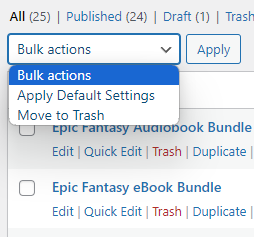
Bulk Actions
Apply Default Settings replaces the selected Book records' display settings with the current Default Settings. The Book title, linked products, primary product, audio sample, epub sample, retailer links, additional content, and reviews are preserved.
Move to Trash sends the selected Book records to the trash.
Edit Default Settings
The Edit Default Settings button opens the settings used as the starting point for new imports and as the source values for Apply Default Settings.
Update defaults before importing a large batch or before applying defaults in bulk.
Edit Archive Settings
The Edit Archive Settings button opens the global settings for the public Books archive page. These settings control the archive title, page styling, container styling, tab styling, and Section Data layout used by the main Books archive.
Edit Book Displays
The Edit Book Displays button opens reusable Book Display records. Each Book Display has its own Section Data and style settings and provides a shortcode that can be placed on another page or post.
Page URL
The Page URL column provides the public Book page link. Click the icon to copy it.
Shortcode
The Shortcode column provides a Book card shortcode for the record. Click the icon to copy it.
Use the Displaying Books tab for available shortcode parameters.
Books List Sorting
The icon can be used to drag Book records into the desired order where custom ordering is supported. Sorting the Books list can also affect store content when DK WC Store uses this plugin's order.
Default Settings
The Default Settings page controls the starting style and global values used by Book records. Defaults are applied during import and can also be applied later from the Books list page.
Most display settings can be overridden on an individual Book record. Global values, such as the page slug and Amazon Associate settings, apply across the plugin.
Book Page Settings
- Page Slug: Sets both the public Books archive URL and the base URL used for individual Book pages.
- Allow Reviews: Enables Site Reviews output on Book pages when the Site Reviews plugin is installed and active.
- Page Background Color and Image: Sets the default page background for Book records.
Book Card Settings
Book Card Settings control the default format, title, series text, card background, border, border radius, headings, text, links, and rule colors used by Book pages and card shortcodes.
Use these settings to establish the standard visual style before importing Books or applying defaults in bulk.
Button Settings
Button Settings control the default colors, border colors, hover colors, and border radius for the Audio Sample button, Book Preview button, and Add To Cart button.
Additional Retailer Settings
- Amazon Associate ID: Adds the configured associate ID to Amazon links on Book pages.
- Hide Amazon Associate Message: Hides the Amazon associate disclosure on Book pages when the disclosure is already handled elsewhere on the site.
- Retailer Icons and Retailer Images: Changes retailer links from text links to supported icon or image treatments.
- Gallery Images: Displays WooCommerce product gallery images on Book pages when available.
Archive and Book Displays
The Archive Settings page controls the public Books archive. Book Display records use the same setting groups but produce reusable shortcodes that can be placed on other pages or posts.
Both surfaces build book sections from the Section Data editor, which can filter by taxonomy terms and sort the books inside each section.
Global Books Archive
The global Books archive uses the configured Page Slug from Default Settings. Clicking View Books Archive Page opens that public archive in a new browser tab.
Use the Page Settings, Container Settings, and Tabbed Layout Settings tabs to control the archive title, background, content container, number of books per row, and tab colors.
Section Data
Section Data defines the sections visitors see on the archive or display. Add sections for common groupings such as Series, Non-series, Collections, Genre, Language, Format, Author, or Category.
Drag available terms into a section to filter the books shown there. Add sort rules when a section needs a specific order, such as Books Order, Menu Order + Title, Title, Category, Genre, Language, Format, Author, or Collection.
Keep section names visitor-facing. For example, use "Collections" or "Box Sets" rather than an internal taxonomy name.
Book Displays
Book Displays are saved display layouts with their own settings and Section Data. Create them from the Books list page by clicking Edit Book Displays.
After publishing a Book Display, copy the shortcode from the Book Displays list or from the edit screen:
[dk_wc_book_display id="00000"]
- id: Required. Identifies the Book Display record to render.
- additional_css_classes: Optional. Adds custom CSS classes to the display wrapper.
Archive Shortcode Alias
The shortcode handler also supports [dk_wc_books_archive id="00000"] as an alias for Book Display output. Use the copied [dk_wc_book_display] shortcode unless you have an existing page that already uses the alias.
Displaying Books
DK WC Books can display books through individual Book pages, the public Books archive, Book Display shortcodes, and individual Book card shortcodes. The output pulls from the Book record, the connected WooCommerce products, and related product attributes.
Individual Book Pages
Each published Book record has its own public page. Book pages can show the product image, title, subtitle, series, purchase formats, Add To Cart button, product gallery, audio sample, epub preview, retailer links, YouTube content, description sections, reviews, Goodreads widget, book details table, upsells, and related products when those values or plugins are available.
The page URL is copied from the Books list page and uses the Page Slug configured in Default Settings.
Books Archive
The public Books archive is generated from Archive Settings. Use Section Data to decide which sections appear and which books each section contains.
The archive can use tabbed sections and can include a language filter when the Language attribute is configured and available in the selected section data.
Book Display Shortcode
Use a Book Display shortcode to place a saved archive-style layout on another page or post:
[dk_wc_book_display id="00000"]
- id: Required. Identifies the Book Display record to render.
- additional_css_classes: Adds custom CSS classes to the display wrapper.
Book Card Shortcode
Use a Book card shortcode to display one Book record with its image, title, format selector, and Add To Cart button:
[dk_wc_books_card id="00000"]
- id: Required. Identifies the Book record to display.
- use_default_settings: Uses Default Settings instead of the record's own display settings.
- img_link: Links the book image to the Book page.
- img_only: Displays only the book image and overrides the buy block.
- display_buy_block: Shows or hides the format selector and Add To Cart button.
- additional_css_classes: Adds custom CSS classes to the card wrapper.
Editing a Book Record
The Edit Book Settings page controls the content and styling for a single Book record. Use it after import to finish the public page, card, samples, retailer links, YouTube content, additional sections, and reviews.
Book Page Settings
Book Page Settings control the WooCommerce products linked to the Book, the primary product, and the page background color and image. Removing a linked product here does not delete the WooCommerce product.
The primary product supplies the initial cover, description, and selected purchase option. If it is a variable product, its WooCommerce default variation is selected first.
If DK Book & Format Details Table is installed and active, this tab can also hide the details table for the current Book page.
Book Card Settings
Book Card Settings control the record-specific colors, borders, headings, text, links, rules, and button styles used when this Book appears on its own page or as a shortcode card.
Button Settings
Button Settings control the Audio Sample, Book Preview, and Add To Cart button appearance for this Book record.
- Audio Sample File: Selects the MP3 sample used on the Book page.
- Epub Sample File: Selects the epub sample used by the Book Preview button when the DK Epub Previewer shortcode is available.
- Epub Start Location: Sets the starting point for the epub preview. If no start location is selected, the preview starts at the beginning.
Additional Retailer Settings
Additional Retailer Settings add purchase links outside WooCommerce.
- Amazon ASIN/ISBN #: Creates an Amazon link and can use the global Amazon Associate ID.
- Audible Link US: Adds an Audible link.
- Books2Read Link: Adds a Books2Read universal link section.
- Custom Retail Links: Adds additional retailer links. Supported names such as Apple Books, Barnes & Noble, Google Play, Kobo, Smashwords, and Walmart can display matching icons or images when those global display options are enabled.
Additional Content Settings
- YouTube Video or Playlist URL: Adds a YouTube video or playlist to the Book page.
- YouTube Thumbnail Override: Selects a Media Library image to use instead of the YouTube-provided thumbnail.
- Additional Description Text: Adds content below the WooCommerce product description.
- After Description Section: Adds a separate content section after the description area.
Goodreads and Reviews Settings
- Goodreads ISBN 13 / ASIN: Displays the Goodreads Reviews widget for the provided identifier.
- Reviews: Adds manually managed review or endorsement content to the Book page.
- Site Reviews: If Allow Reviews is enabled and Site Reviews is installed, the Book page can show submitted reviews and an Add A Review form.
Save Settings as Defaults
The Save Settings as Defaults button copies this Book record's display settings into Default Settings. Any global Default Settings values that are not part of the Book record are preserved. As an example, the Amazon Associate ID and the Hide Amazon Associate Message flag set in the Default Settings will be preserved.
Replace Book Settings with Defaults
The Replace Book Settings with Defaults button applies the current Default Settings to this Book record. Book-specific content such as samples, retailer links, YouTube content, additional text, and review content is preserved.