WooCommerce Product Setup
DK Music builds public music pages from WooCommerce products. Before importing, make sure the products use the categories and attributes configured for DK Music in the DK Base Plugin settings.
Only products assigned to the configured Music product categories are imported. The WooCommerce product remains the source for the price, purchase options, product image, description, and stock status.
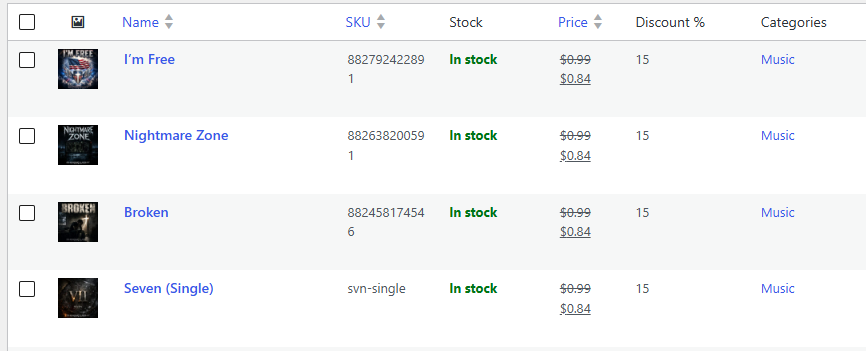
Required Product Structure
Each music product should be set up as a simple WooCommerce product. The product title becomes the default Music record title, and the product image and description are used on the Music page unless edited later in the Music record.
For alternate formats of the same song, create the formats as WooCommerce products that use the same title and the correct Format attribute. This allows the Music page buy block to present the available formats together instead of creating unrelated records.
Product Attributes
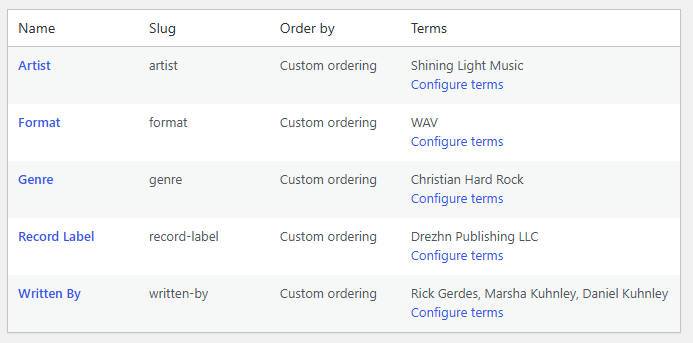
Product attributes are used to organize and display Music records. Create the attributes under Products -> Attributes, then apply the correct terms to each WooCommerce product.
- Format: Used for purchase format options such as MP3, WAV, or FLAC.
- Artist: Used to group Music records on the Music page.
- Album: Used when a song belongs to an album.
- Genre: Displayed on Music pages and cards when available.
- Record Label: Displayed with music details when available.
- Written By: Displayed with song details when available.
Before Importing
Confirm that the product has a featured image, price, stock status, Music category, and the attributes needed for the Music page layout. Missing values can usually be edited later, but the imported record is easiest to manage when WooCommerce is complete first.
If you use album pages, import the song products first. Album records can then be edited to select and sort the songs that belong on the album page.
Managing Music Records
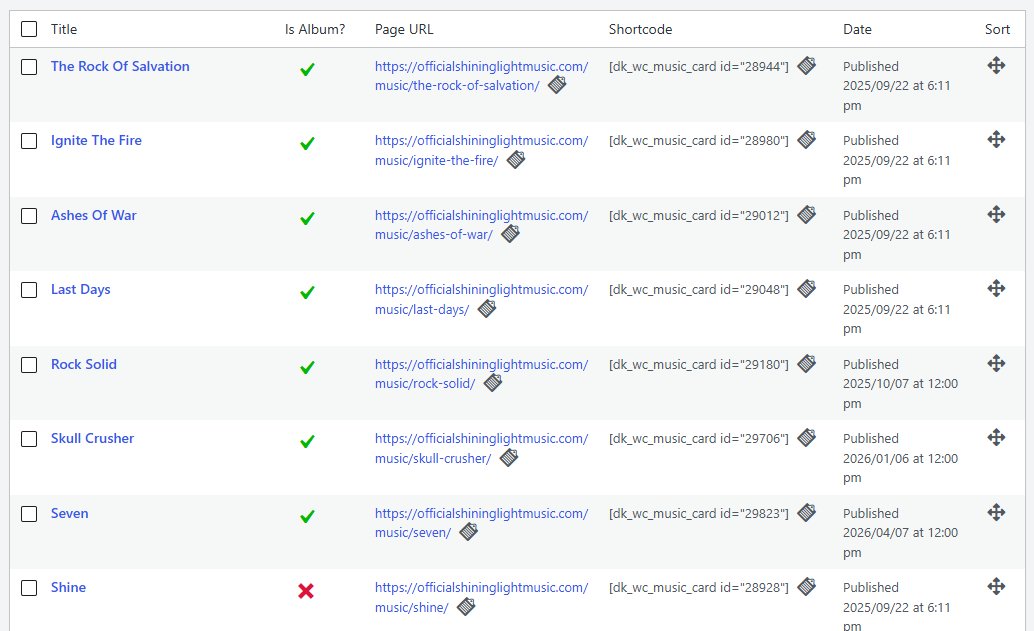
The Music list is where imported Music records are reviewed, edited, sorted, copied, and maintained. Each Music record represents the public page or card used to display a song or album.
Import Music from WooCommerce
The Import Music from WooCommerce button creates draft Music records from WooCommerce products in the configured Music categories. Products that are already connected to a Music record are skipped so the import can be run again after new products are added.
Imported records should be reviewed before publishing. Use the edit screen to confirm album status, song details, audio samples, retailer links, lyrics, and page styling.
Albums and Singles
The list page includes filters for Albums and Singles. The Is Album column shows which records are configured as albums. Album records can contain a manually sorted song list; single records display as individual songs.
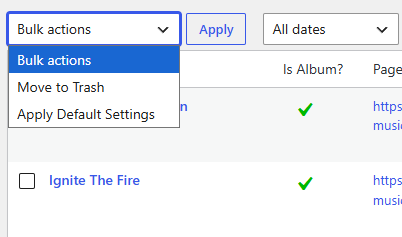
Bulk Actions
Use Apply Default Settings to replace the selected Music records' style settings with the current default values. This does not replace record-specific content such as audio samples, lyrics, selected album songs, or retailer links.
Move to Trash sends the selected Music records to the trash.
Page URL and Shortcode Columns
The Page URL column provides the public Music page link. Click the icon to copy it.
The Shortcode column provides a Music card shortcode for the record. Click the icon to copy it.
Export/Import Data
The Export/Import Data page is used to move Music records between sites. Exports include Music posts, post meta, terms, and related media. Imports can skip existing records by slug and can deduplicate media by filename.
WooCommerce products are matched during import by SKU when possible, then by slug. Review imported records after import to confirm the connected products and media.
Music List Sorting
The icon can be used to drag Music records into the desired order where custom ordering is supported. The public Music page also provides its own search and sort controls for visitors.
Default Settings
The Default Settings page controls the starting style and global values used by Music records. Defaults are applied during import and can also be applied later from the Music list page.
Most display settings can be overridden on an individual Music record. Global values, such as the page slug and Amazon Associate settings, apply across the plugin.
Music Page Settings
- Page Slug: Sets the base URL used for Music pages.
- Allow Reviews: Enables Site Reviews output on Music pages when the Site Reviews plugin is installed and active.
- Page Background Color and Image: Sets the default page background for Music records.
Music Card Settings
Music Card Settings control the default card background, border, border radius, headings, text, links, rule colors, and button colors used by Music cards and page sections.
Use these settings to establish the standard visual style before importing Music records or applying defaults in bulk.
Additional Retailer Settings
- Amazon Associate ID: Adds the configured associate ID to Amazon album and track links.
- Hide Amazon Associate Message: Hides the Amazon associate disclosure on Music pages when the disclosure is already handled elsewhere on the site.
Shortcode Button Settings
Shortcode Button Settings control the default Add To Cart button colors, border colors, hover colors, and border radius used in Music card shortcodes.
Related Products
Enable Show Related Products to display the linked WooCommerce product's visible cross-sells below a Music page. Choose the heading text, background color, text color, text shadow color, and desktop, tablet, and mobile font sizes. Live previews show the heading at each size. These settings apply globally to Music pages.
Archive Settings
The Music Page Settings page controls the public Music archive. These settings include the archive page title, page background, content container style, artist details, artist banners, and artist descriptions.
The archive groups Music records by artist and separates albums and singles so visitors can browse the catalog from one page.
Displaying Music
DK Music can display music through individual Music pages, the public Music page, and shortcodes. The display pulls from the Music record, the connected WooCommerce product, and the related product attributes.
Individual Music Pages
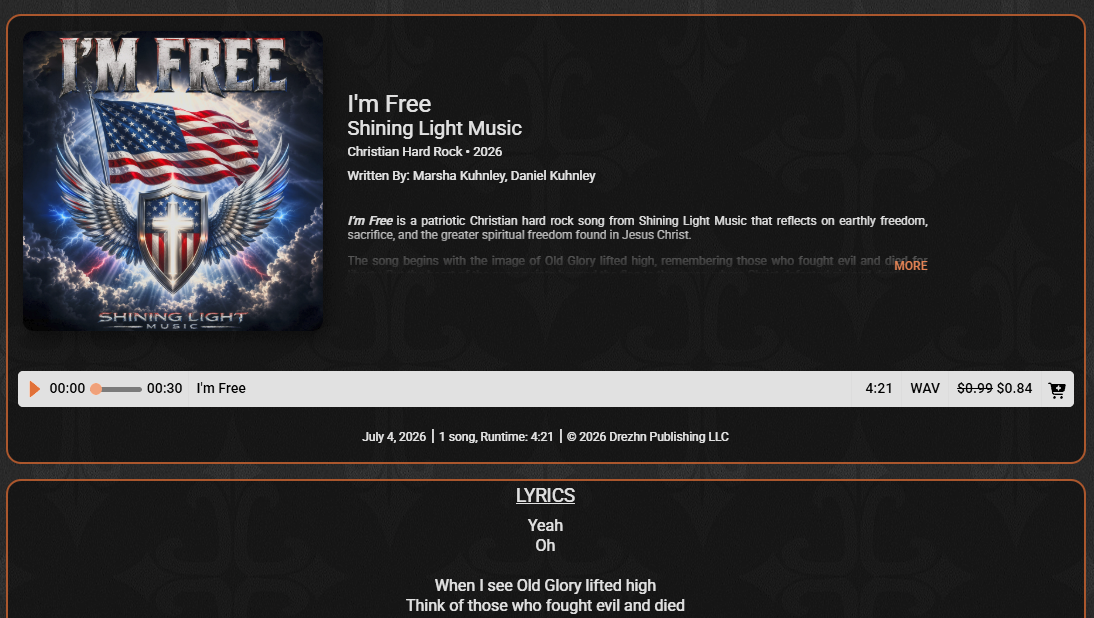
Each published Music record has its own public page. Song pages can show the product image, artist, genre, release information, written by details, description, purchase options, audio sample, lyrics, reviews, and retailer links.
Album pages can include a sorted list of songs. Each song can link to its own Music page and can display available details such as duration, sample audio, and purchase options.
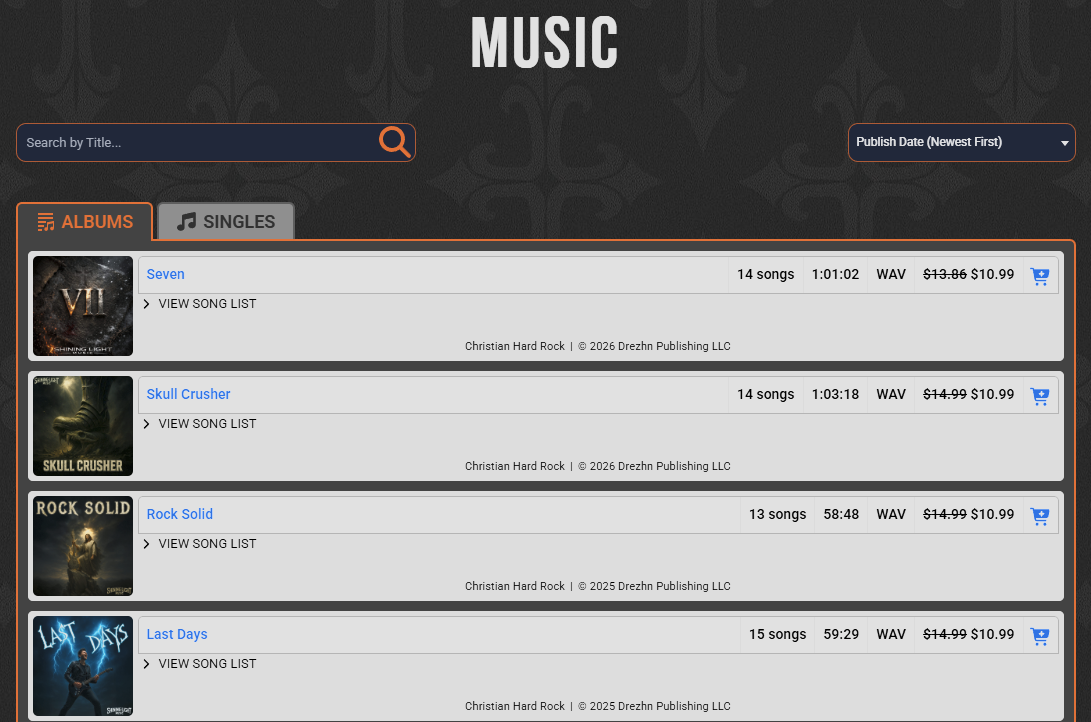
Music Page
The Music page lists Music records by artist and separates albums from singles. Visitors can search by title and sort the records from the page controls.
Artist details, banners, and descriptions are controlled from the Music Page Settings screen.
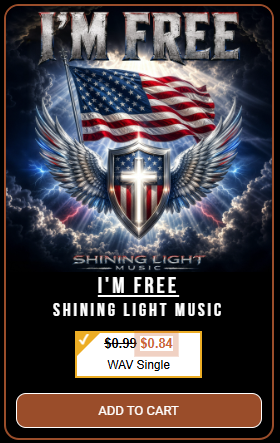
Music Card Shortcode
Use the Music card shortcode to display a record in another page or post:
[dk_wc_music_card id="00000"]
- use_default_settings: Uses Default Settings instead of the record's own display settings.
- img_link: Links the image to the Music page.
- img_only: Displays only the image and overrides the buy block.
- display_buy_block: Shows or hides the buy options and Add To Cart button.
- additional_css_classes: Adds custom CSS classes to the card wrapper.
Latest Music Shortcode
Use the latest Music shortcode to display the newest Music records:
[dk_wc_music_latest count="4"]
The shortcode also supports the Default Settings and custom CSS class options used by Music cards.
Editing a Music Record
The Edit Music Settings page controls the content and styling for a single Music record. Use it after import to finish the public page, card, retailer links, audio sample, lyrics, and album song list.
Music Page Settings
Music Page Settings identify whether the record is an album and control the page background color and background image. Album records can contain a song list; single records display as standalone songs.
Music Card Settings
Music Card Settings control the record-specific colors, borders, headings, text, links, rules, and buttons used when this Music record is displayed on its own page or as a shortcode card.
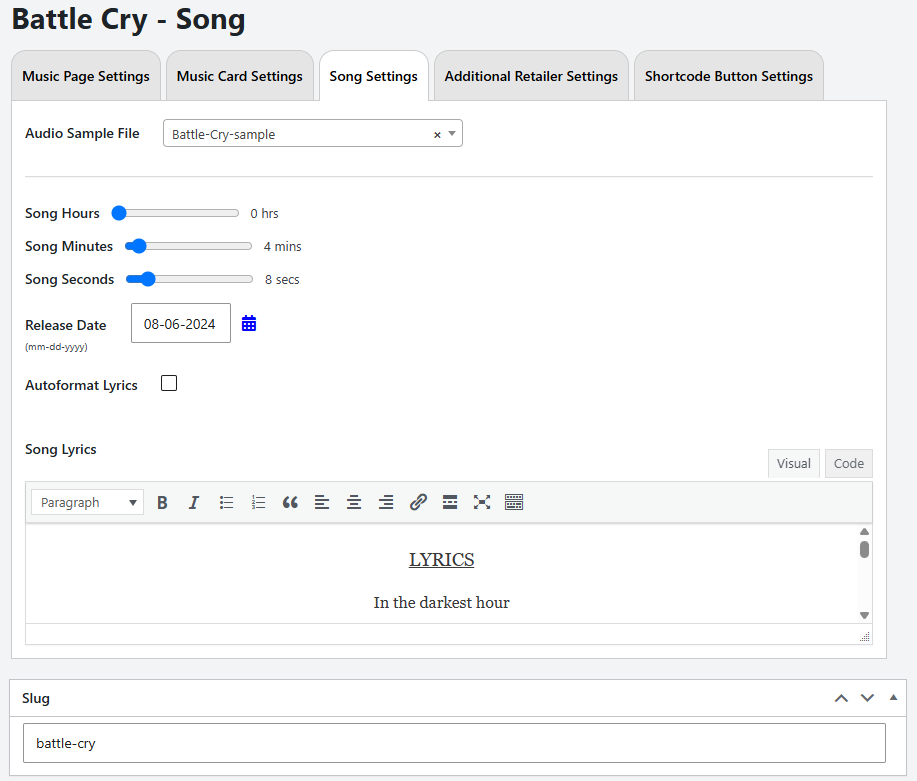
Song Settings
- Audio Sample File: Selects the audio sample used on the Music page.
- Song Time: Sets the song duration from hours, minutes, and seconds.
- Release Date: Sets the release date used for display and sorting.
- Album Song List: Selects and sorts songs that appear on an album page.
- Lyrics: Adds lyrics to the Music page. Autoformat can be used to format lyric line breaks for display.
Additional Retailer Settings
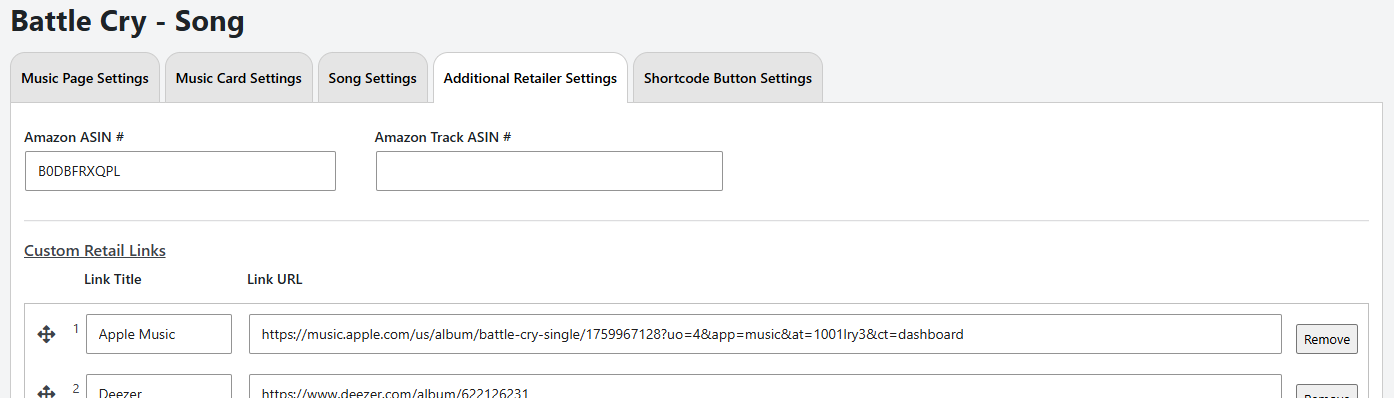
Additional Retailer Settings add purchase links outside WooCommerce. Amazon album and track ASIN fields are used for Amazon links, and custom retailer links can be added, sorted, edited, or removed as needed.
Shortcode Button Settings
Shortcode Button Settings control the Add To Cart button appearance for this Music record when it is displayed through a shortcode card.
Save or Replace Defaults
Save Settings as Defaults copies the current record's display settings into the Default Settings. Replace Music Settings with Defaults applies the current Default Settings to this record.
Record-specific content such as audio samples, lyrics, selected album songs, and retailer links is preserved when replacing display settings with defaults.